

Academic talks with real references, on Mac, iPhone and iPad
Start from a topic, your own study or a set of papers. ScholarSlides writes a slide-by-slide plan and finds its sources in PubMed and Europe PMC. An image model draws every slide in the style you choose, and speaker notes are added. You save the talk as a PDF or a PowerPoint file.
Coming soon to the App Store
For Mac, iPhone and iPad. Now in closed beta; the iPhone and iPad app is on TestFlight.


How it works
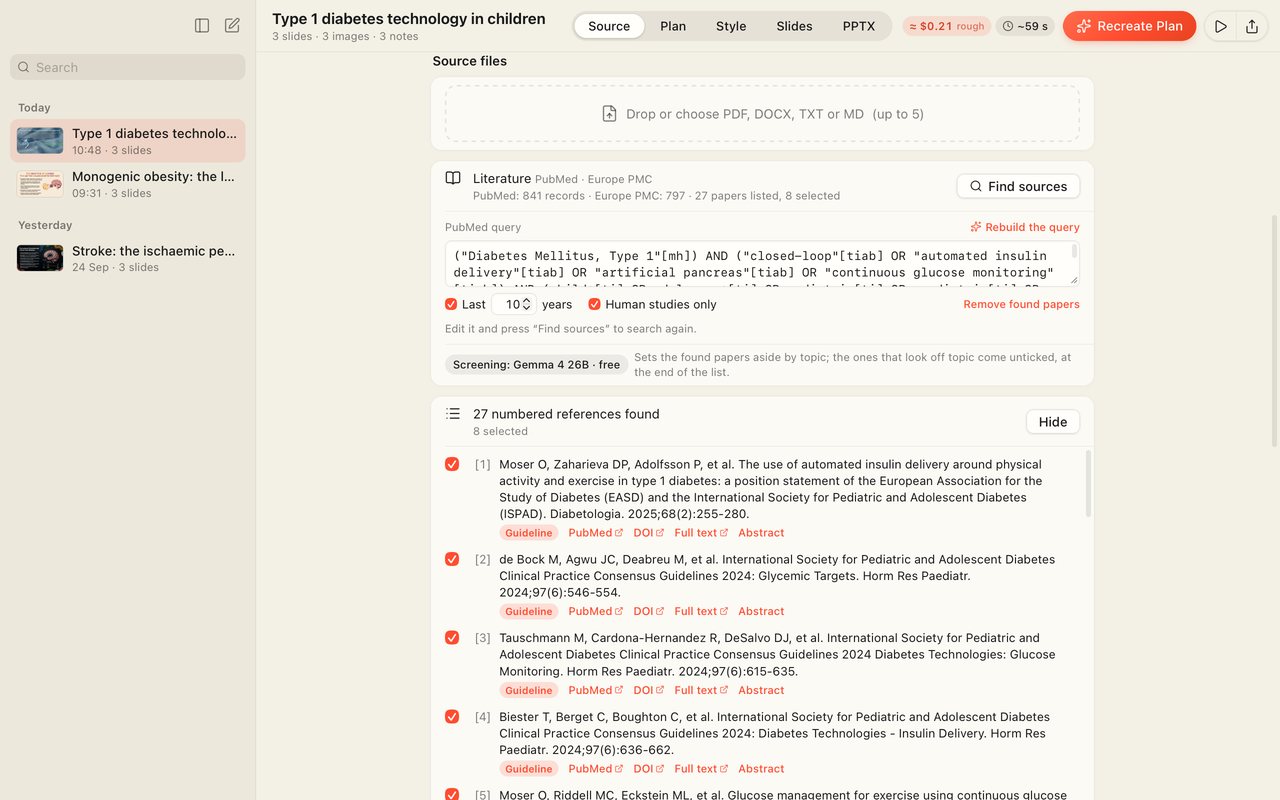
A topic or papers
Type a topic, or add your own manuscript or abstract (PDF, Word). “Find sources” searches PubMed and Europe PMC; the papers you tick go into the plan. Figures from open-access papers are sorted too: the useful-looking ones come ticked and can go on a slide with their licence. Each slide that uses a source gets a short source line in its corner, and a references slide closes the talk.
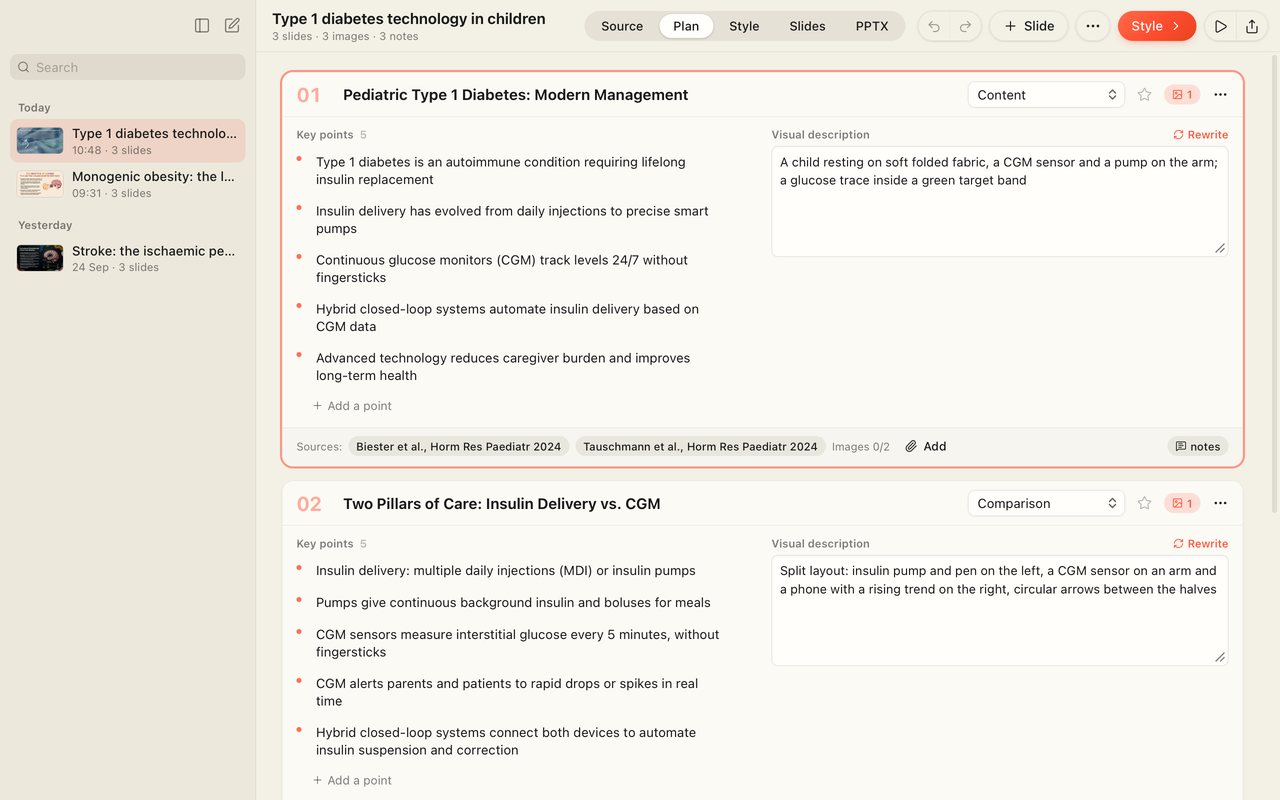
A plan, slide by slide
The plan shows each slide’s title, key points, type and sources. You correct the titles and points, and add or remove slides.
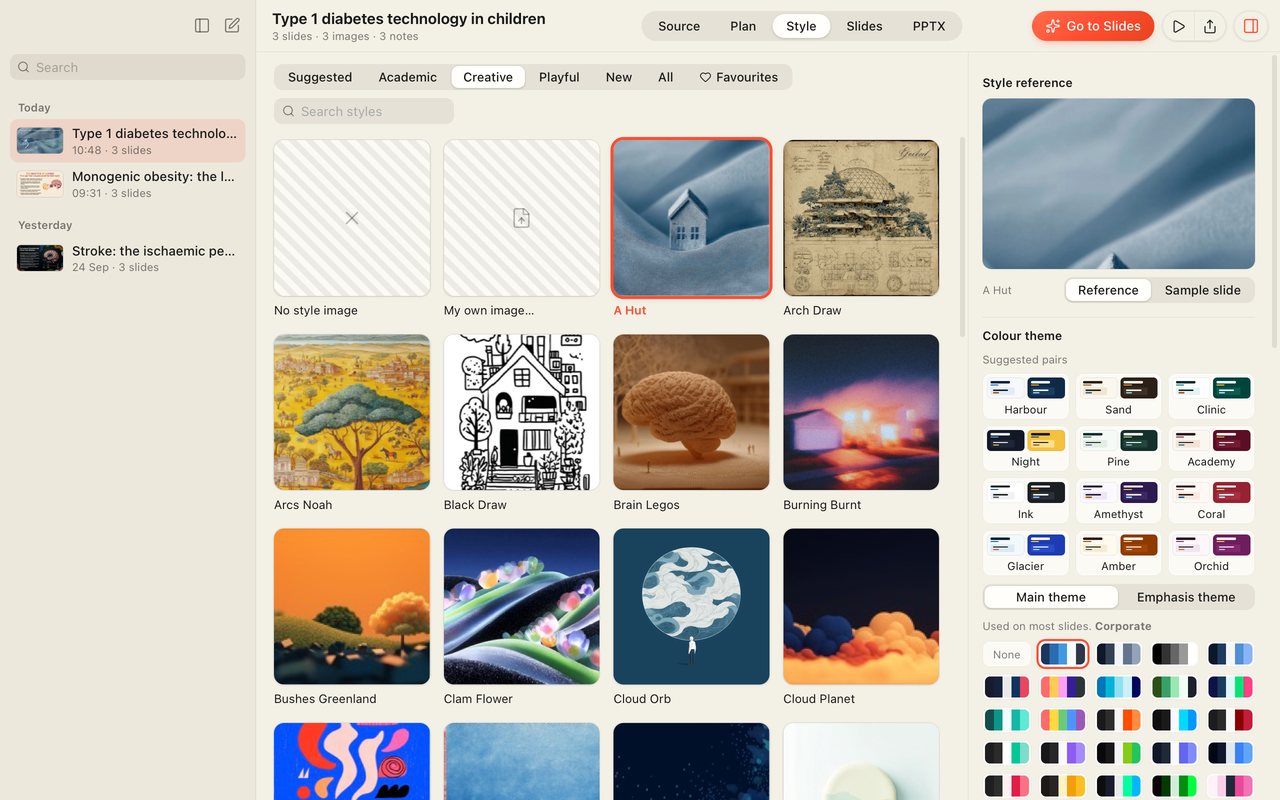
Every slide is drawn
You pick a style picture, and the colours from the themes, the suggested pairs or a palette of your own. An image model draws every slide in that style, and speaker notes are written. For a slide you don’t like, you write what should change: only that changes, and the old version stays in History.
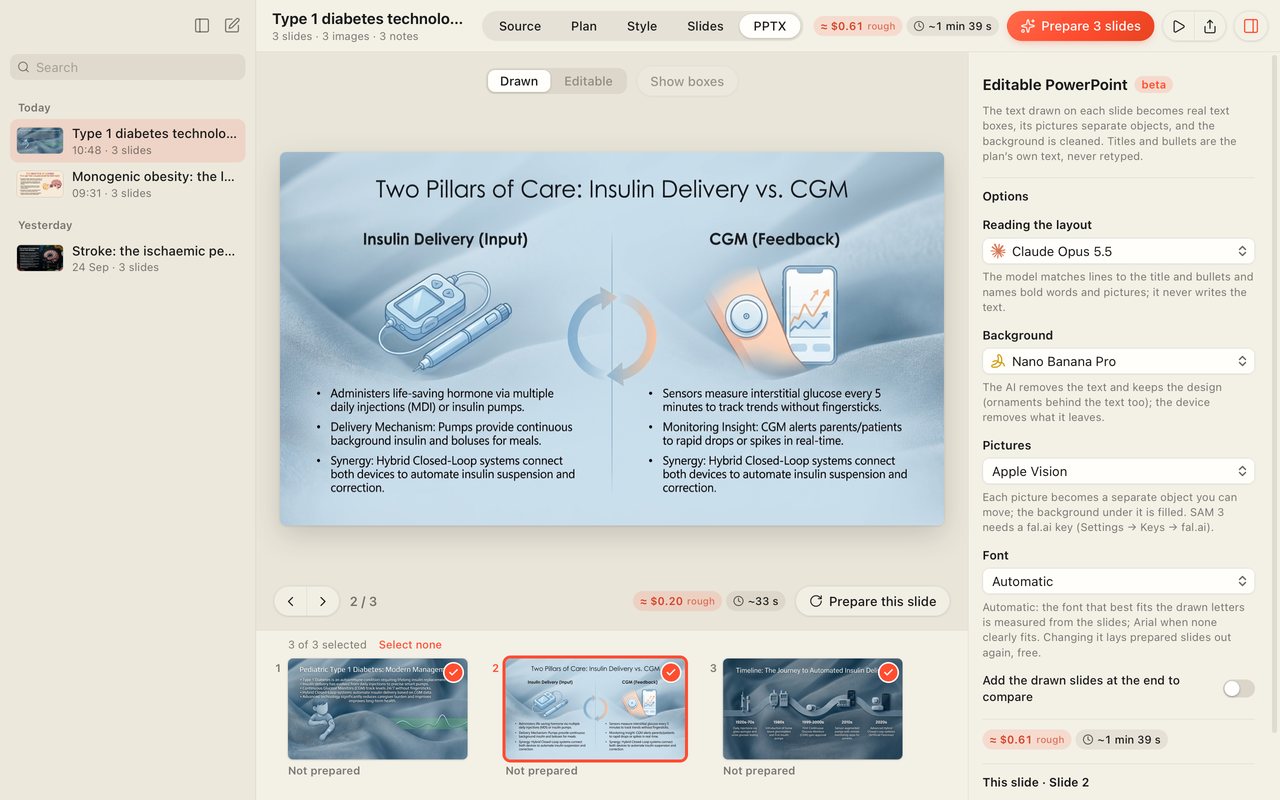
PDF and PowerPoint
Save the talk as a PDF, a PowerPoint with notes or an A4 handout, and a single slide as PNG or JPEG. The PPTX step turns the slides into an editable PowerPoint (beta): titles and key points become real text boxes with the plan’s text, pictures are separate objects, and the background is cleaned. You can also correct a box’s text by hand; the text is fitted to its box.


On the Mac, the iPhone and the iPad
Your decks open on all three, and the iPhone and the iPad plan and draw too. In landscape the iPad shows the Mac’s layout; in portrait, in Split View or in Slide Over, the iPhone’s. The iPhone and the iPad sync with the Mac when they are on the same Wi-Fi network; the sync goes directly between the devices, not through a server.


With your own AI key
Planning and drawing run at the AI service you choose. One OpenRouter key is enough; an OpenAI or a Gemini key also works on its own. The service charges for what you use, and every job shows its estimated cost and time first.
Privacy
Your keys are stored in the device’s Keychain. Your content goes only to the services you use: the AI service you choose, and PubMed and Europe PMC when you search for sources. No data comes to us. In a case presentation, text and images are scanned on the device for patient data before anything is sent: a national ID number stops the send (Turkish TC numbers are checked today), and phone numbers, e-mail addresses, dates, record numbers or name lines ask for your confirmation.
Frequently asked questions
General
What is ScholarSlides?
ScholarSlides is an academic presentation app for Mac, iPhone and iPad. It prepares a talk with real references from a topic, your own study or a set of papers: an AI model writes the plan, an image model draws every slide in the style you choose, and speaker notes are added.
Which devices does it run on?
A Mac with Apple silicon (M1 or later) and macOS 13 (Ventura) or later, and iPhone and iPad with iOS or iPadOS 17 or later. There is no Windows or Android version for now.
Do I need an AI key, and which one?
Yes: planning and drawing run at the AI service you choose. One OpenRouter key is enough; an OpenAI or a Gemini key also works on its own, and an Anthropic (Claude) key plans only. Keys are stored in the device’s Keychain, and the Mac can pass its keys to an iPhone or iPad with a QR code.
What does a talk cost?
The AI service charges the key’s owner for what they use, and the app shows the estimated cost and time before every job. For example, by the app’s own estimate the plan, slides and speaker notes of a 20-slide talk come to about US$2 with the default models (Claude Opus 5.5 through OpenRouter, GPT Image 2.5 Flare through OpenAI) and about US$4 with a single OpenRouter key (Nano Banana Pro draws the slides). It is an estimate; the cost depends on the models you choose.
Are the references real?
“Find sources” finds the papers in PubMed and Europe PMC, and slides can cite only the papers you selected. Each slide that uses a source gets a short source line in its corner, and a references slide closes the talk. You see and correct the plan before anything is drawn; AI can be wrong, so check the talk before you use it.
Can I make a talk from my own paper or data?
Yes: add up to 5 files as PDF, Word (DOCX), TXT or Markdown; a figure or table from a PDF can go on a slide as it is, with its source line. In a case presentation, text and images are scanned on the device for patient data before anything is sent; the scan helps but does not guarantee anonymisation.
Can I edit it in PowerPoint?
Yes, with the editable PowerPoint (beta): titles and key points become real text boxes with the plan’s text, pictures become separate objects, and you can correct a box’s text by hand in the app before you save. In the PowerPoint with notes each slide is a picture; you can also save a PDF, an A4 handout, or a single slide as PNG or JPEG.
Where is my data?
Your presentations and keys stay on your device, and there is no account. Content goes only to the services you choose, only when you use a feature; no data comes to us. Details are in the privacy policy.
Does it work offline?
Planning, drawing and “Find sources” need the internet: that work happens at the AI service, PubMed and Europe PMC. Opening a deck, presenting it and saving it as a PDF or a PowerPoint with notes work offline, and the Wi-Fi sync needs a shared local network, not the internet.
Which languages?
The app’s interface is in Turkish or English. The talk’s language is chosen separately: English, Turkish, German, French, Spanish, Italian, Portuguese, Dutch, Russian, Arabic, Hindi, Chinese, Japanese or Korean.
When is it out, and how do I join the beta?
Coming soon to the App Store; now in closed beta, with the iPhone and iPad app on TestFlight. The app’s own price will be announced with the App Store release; the AI costs go to the service you choose with your own key. Interested? Write to support@scholarslides.app.
How do I…?
Some slides have no speaker notes. How do I write them?
In Slides → Notes, “Write missing notes (N)” writes the notes of every slide that has none in one go; “Write missing speaker notes” in the “…” menu does the same. For one slide, press “Write notes” in the same tab, or “Write by hand” to type them yourself.
I don’t like a slide. How do I change it?
In Slides → Edit, type what should change in the “Visual edit” box and press “Apply”: only that changes, and the previous version stays in History. To draw it again from scratch, use “Regenerate”; to change only this slide’s look, fill in “Style for this slide” and press “Regenerate with these settings”.
A run stopped halfway, or the app closed. What happens?
The slides already drawn stay in the deck; “Generate N Missing” in Slides draws only the slides that have no picture yet. On the iPhone and iPad a notice also says the generation stopped halfway; its “Generate the remaining N slides” does the same.
An error box says the credit or a spending limit ran out. What do I do?
The box’s button opens the service’s page: “Add credit” when the credit ran out, “Raise limit” when a spending limit was reached; the service’s own message is under “Details”. Once it is fixed, “Generate the remaining N slides” carries on where the run stopped.
How do I move my keys from the Mac to an iPhone or iPad?
On the Mac, Settings → Keys → “Send to iPhone or iPad…” shows a QR code. On the iPhone or iPad, point the Camera at it, tap the “ScholarSlides” link and confirm with “Import”; the code carries your keys, so scan it only with your own device.
How do I sync the Mac with an iPhone or iPad?
On the Mac, Settings → iPhone/iPad → “Pair with iPhone or iPad…” shows a QR code; with both devices on the same Wi-Fi, scan it with the Camera and confirm with “Pair”. After that the iPhone or iPad syncs by itself when the app comes to the front and when a job ends; ScholarSlides must be open on the Mac.
How do I save a single slide as an image?
In the “Export” menu or in the slide’s own menu (on the Mac, right-click its thumbnail in the slide strip; on the iPhone and iPad, the slide’s “…” menu), choose “Save this slide as an image”, then PNG or JPEG. It is saved at full resolution.
How do I use my own style picture or colour palette?
In the Style step, choose “My own image…” to pick a picture; the slides are drawn in that style. For colours, pick one of the “Suggested pairs” under “Colour theme”, or choose five colours yourself with “New palette”; “Save to favourites” keeps a palette for other decks.
How do I fix a wrong word in the editable PowerPoint?
In the PPTX step, prepare the slide (“Prepare this slide”), then in the “Editable” preview double-click the box on the Mac, or tap it on the iPhone and iPad; correct the text and press “Done”. The text is fitted to its box, “Restore original text” puts it back as it was, and “Save PowerPoint” writes the file.
How do I present the talk?
The play button in the top bar (▷, “Play deck”; ⌥⌘P on the Mac) opens the talk full screen. The arrow keys, the space bar, a tap or a click move on; the notes button or N shows the speaker notes, and × or Esc leaves the talk.
Coming soon to the App Store
For Mac, iPhone and iPad. Now in closed beta; the iPhone and iPad app is on TestFlight.